Highlights
Contents
Highlights is the first tab on the Replay Vision home. It reads the observations every scanner produced over a date range and picks the sessions that show something going wrong: a failure, a struggle, or a payment problem. You start with a short grid of sessions worth watching instead of a table per scanner.
What each card shows
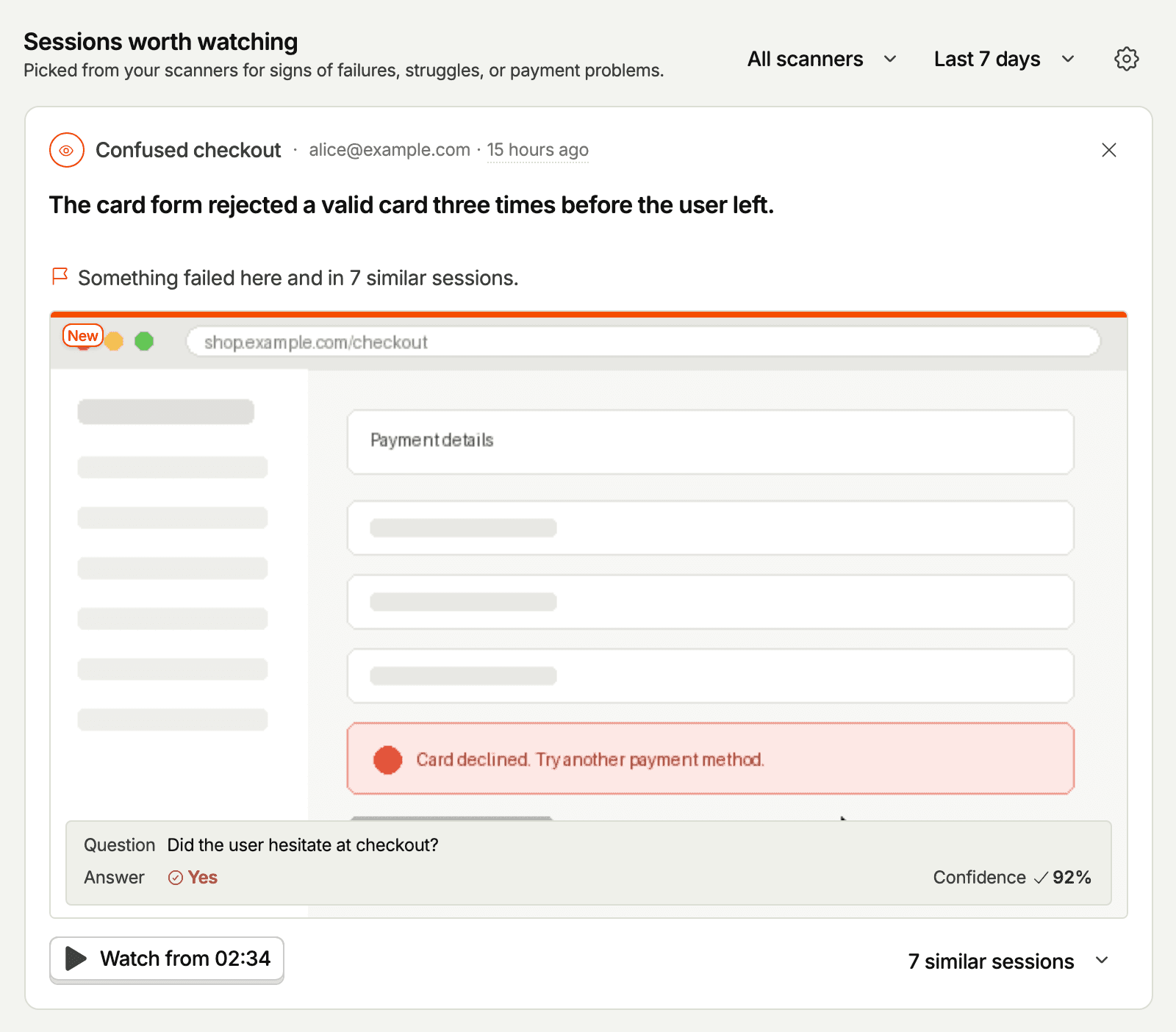
Each card is one session, picked from one scanner:
- Scanner – the scanner's name, with an icon in its type's color. Hover it to see the scanner's question and its answer. Click it to open the scanner.
- Person and time – who was recorded, with a link to their person profile, and when the scan ran.
- Headline – the summary's title for summarizers. For other scanner types, it's the first sentence of the scan's reasoning.
- Why this session – one line on what the session shows, like "Something failed in this session" or "The user struggled here and in 4 similar sessions."
- Poster – a frame from the recording at the key moment, the point the scan's answer rests on most.
- Question and answer – for monitors, scorers, and classifiers, a box over the poster shows the scanner's question, its answer (yes or no, the score, or the categories), and how confident the scan was. Summarizers have no answer, so they get no box.
- Chapters – summarizer cards with chapters become a carousel. Use the arrows on the poster to step through a frame for each chapter.
A bar across the top of the poster and a New tag mark sessions you haven't opened yet. This is tracked per user, and opening the session clears it.
Watching a session
Click a card, or its Watch from button, to open the observation page. The player starts 3 seconds before the key moment, so you see what led up to it. If you stepped to a chapter in the carousel, the button says so and the player starts at that chapter instead. Sessions without a key moment start from the beginning. Going back returns you to the feed.
How sessions are picked
Every observation is compared with a set of short descriptions of things going wrong, like "the user saw an error message and the action they tried failed" or "the user rage clicked and gave up." This needs no extra model call, so it costs no credits. A session that reads more like one of these than like routine use gets a category and a score:
| Category | What it covers |
|---|---|
| Failures | Errors, failed requests, clicks that did nothing, dead ends |
| Struggles | Repeated attempts, rage clicks, abandoned forms, workarounds |
| Payment or checkout problems | Failed payments, cancellations and downgrades, usage limits |
The feed then ranks sessions within each scanner, so a scanner that sees errors all the time doesn't crowd out the others. Only the top fifth of each scanner's sessions in the window are picked. Among those:
- Similar sessions collapse into one card. Sessions from one scanner that describe nearly the same thing form a group, and the feed shows the best one. A group that reached more people ranks higher.
- Sessions you've seen sink. A session you've already opened ranks lower, and a pick shown to you a few times without a click gives way to fresh ones.
- No one scanner or person takes over. Each scanner gets a share of the picks, and sessions from the same person are spaced apart.
When the window has few findings, the feed pads out with sessions you haven't opened yet, then the newest ones. If every card is padding, the feed says that no sessions stood out in this window.
The feed loads more as you scroll. When the ranking runs out, it says you're caught up.
Similar sessions
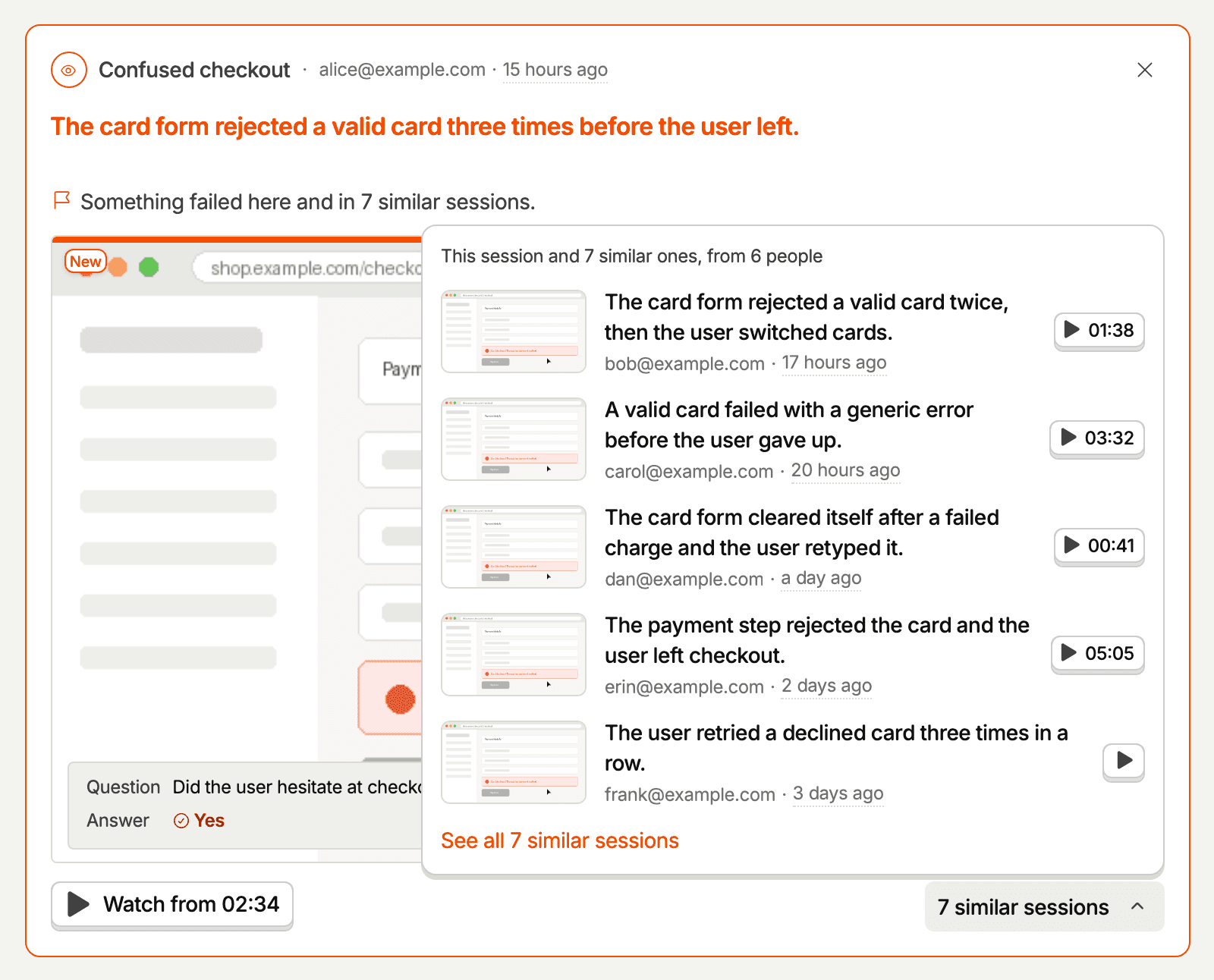
A card that stands for a group has a similar sessions button. Click it to see up to five of the other sessions, with who was recorded, when, and a button that starts each one at its key moment. Larger groups end with a link to the scanner's Observations tab, filtered to the whole group.
Hiding a session
Click the × on a card to hide it. Pick why it isn't useful (Not a real problem, Already known, Not my area, or Other reason), or Hide without a reason. The card leaves your feed at once, and the toast offers Undo. Hiding only affects your own feed, and the reasons help us improve how sessions are picked.
Choosing what the feed shows
The controls above the feed narrow what it picks from:
- All scanners or My scanners – follow every scanner, or only the ones you created. This shows when you've created at least one scanner.
- Date range – the last 24 hours, 7 days (the default), 30 days, or 90 days.
- Customize feed (the gear icon) – choose which categories to include. Turning one off drops its sessions without promoting weaker sessions in their place. This is saved per project, and a dot on the gear shows when a category is hidden.
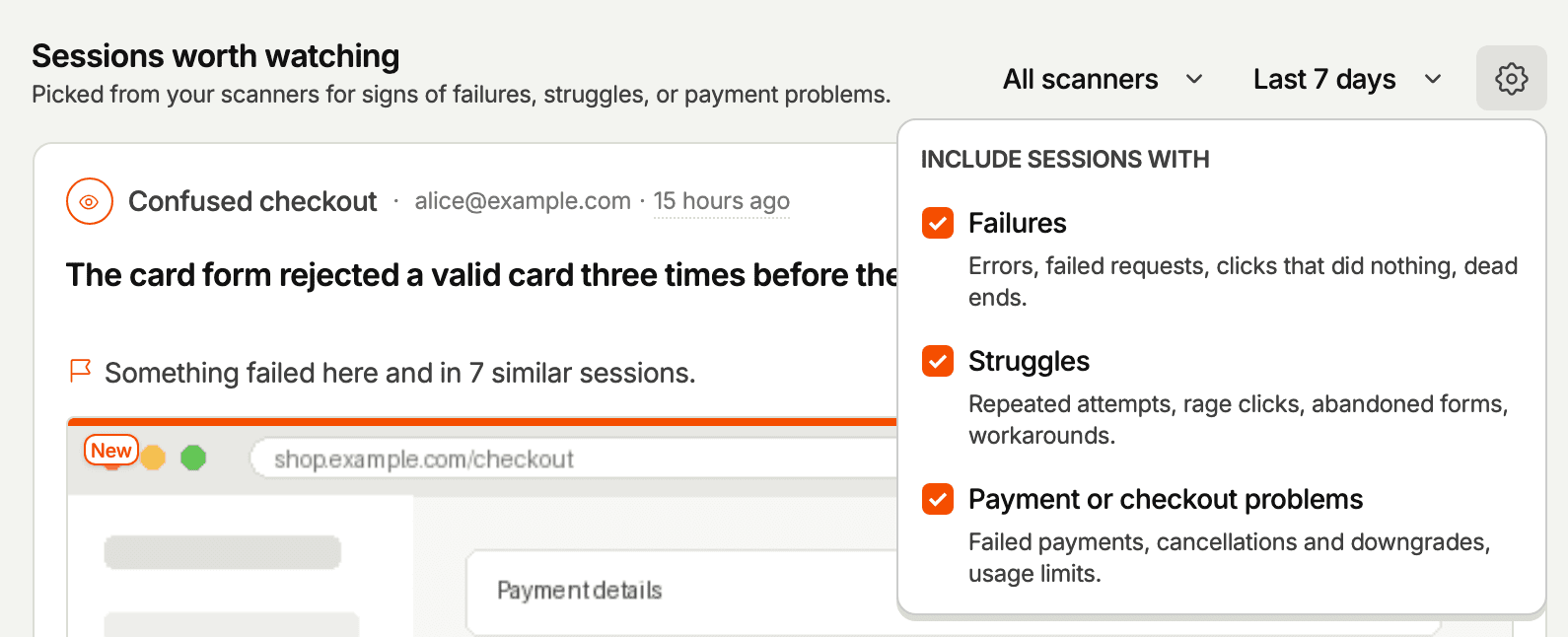
To find sessions by what happened in them rather than by how they rank, use the Search tab. See searching observations.
When the feed is empty
An empty feed tells you why, and what to do about it:
- No scanners yet – the tab explains the feed with example cards and offers to scan your recent recordings.
- No recordings to scan yet – the project has no recent recordings. Set up session replay first.
- Your Replay Vision credits are used up for this period – scans are skipped until the period resets or you raise the limit. See quota and limits.
- All scanners on this project are off – turn one on to scan new recordings again.
- Every running scanner has reached its credit limit for this period – raise a scanner's limit to start it again. Sessions they skipped aren't scanned later.
- Nothing stood out in this window – try a longer date range, or turn categories back on in Customize feed.
When scans are blocked but older sessions are still in the window, the feed shows them with a banner that explains the block.
Themes and groups over the API and MCP
The feed's groups, and broader themes, are also available on their own, so you or an agent can ask which issues keep coming up and how many people they reach:
- Groups are tight clusters of one scanner's sessions that tell the same story, like one bug many people hit. They're what the feed collapses into one card.
- Themes are broader clusters of one scanner's issue sessions that describe the same kind of situation. Once a theme is big enough, it gets a short name, and the largest themes become the Suggested searches on the Search tab.
Each one comes with counts over a window: observations, distinct people, the count in the window before for comparison, when it was first and last seen, and up to three example observations. A status says where it stands:
| Status | What it means |
|---|---|
emerging | Its first member is from the last week |
active | Still getting new members |
fading | The last week has under half the week before |
dormant | No new member in two weeks |
To read them over the API, call GET /api/projects/:project_id/vision/themes/ or GET /api/projects/:project_id/vision/groups/ with a personal API key that has the replay_scanner:read and session_recording:read scopes:
scanner_idlimits the list to one scanner. Without it, the list covers every scanner you can read.date_fromanddate_toset the window. It defaults to the last 30 days, and can span up to 90 days for one scanner, or 30 days across scanners.ordersorts bypeople(the default),observations,growth, orrecent.limitandoffsetpage through the results.
Fetch one by ID at .../vision/themes/:id/ or .../vision/groups/:id/. To read the sessions behind one, list the scanner's observations filtered by theme or group.
Over MCP, the same lists are vision-themes-list, vision-themes-get, vision-groups-list, and vision-groups-get. The feed itself is vision-scanners-highlight-feed.